Windows · Free · No bot in your calls

Record your meetings without inviting a bot.

The AudiosTranscribe Windows app captures system sound and your mic locally, at the same time. No "AudiosTranscribe has joined the meeting" notification: your Zoom, Teams, Meet or Discord calls stay private.

Windows 10 / 11 No bot Ctrl + Shift + R GDPR, hosted in Europe
The AudiosTranscribe desktop app on Windows: choosing audio sources (microphone and system sound), gain levels, meeting name and a Start recording button.

Why a desktop app?

Three things no browser extension, no Zoom bot and no native Windows recorder can do at the same time.

System audio + mic capture

A native Rust module in WASAPI loopback: your voice on one side, what you hear in Zoom or Teams on the other, in two separate tracks. No software mixer to configure, no virtual cable.

No bot in your calls

Otter, Fireflies and Fathom invite a bot into the meeting: everyone sees "Otter.ai has joined the call". With AudiosTranscribe Desktop, the recording is invisible to participants, like a silent notepad.

YouTube in 1 click

Paste a YouTube video URL: the app extracts the audio (bundled yt-dlp), sends it encrypted, and the transcription appears in your workspace. Ideal for lectures, talks and podcasts.

Compared to other methods

Four ways to record an online meeting, four different trade-offs.

AudiosTranscribe
Desktop
Bot Otter
Fireflies, Fathom
Windows recorder
(Game Bar, OBS)
Loom
Vimeo Record
No bot in the meeting ✗ Visible bot
Mic + system sound capture ✓ Separate tracks ✓ Server-side Mono mixed Mono mixed
AI transcription included Mostly English
Speaker identification
Works with Zoom, Teams, Meet, Discord ✓ All Platform-dependent ✓ All ✓ All
Hosted in Europe / GDPR ✓ France ✗ USA ✓ Local ✗ USA
Transcription from a YouTube URL
Starting price Free (120 min/month) $17/month Free $15/month

How does it work?

Three steps, no audio setup to figure out. The app detects your devices and picks the right sources by default.

1

Download and install

Sign in to app.audiostranscribe.com to get the Windows installer (~217 MB). The app is ready in under two minutes.

2

Press Ctrl + Shift + R

Before or during your Zoom, Teams or Meet meeting. The app captures the mic and the system sound. A taskbar icon shows the status and the timer.

3

Get your transcription

When you stop, the audio is sent encrypted to our servers in France. The transcription, summary and extracted action items appear in your web workspace within minutes.

Bonus

Transcribe a YouTube video

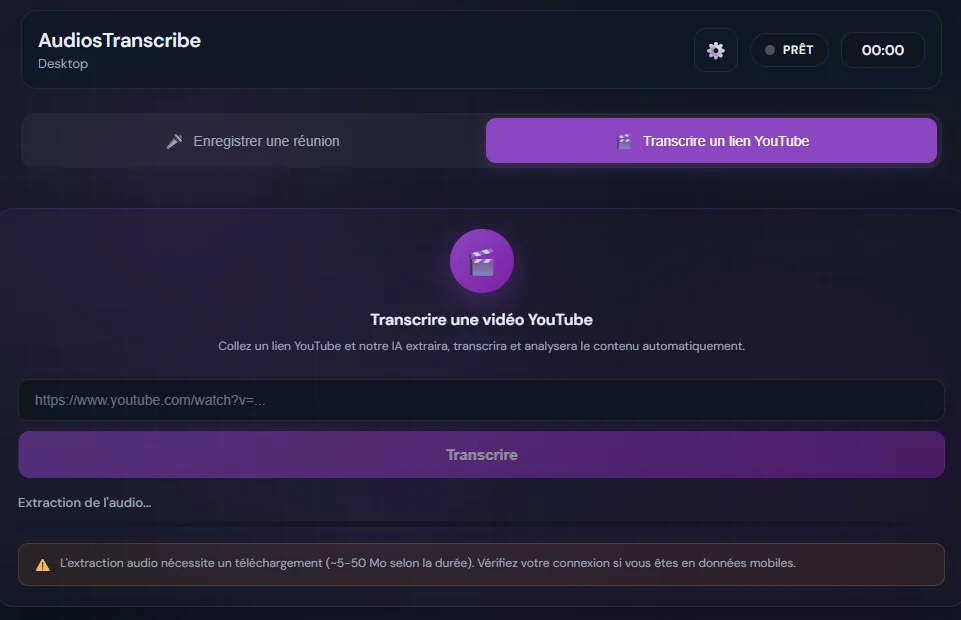
A dedicated tab in the app: paste the URL, the audio is extracted locally with bundled yt-dlp (5 to 50 MB depending on length), then the track is sent for transcription.

Handy for transcribing an online course, a talk, a podcast or a reference video, with no third-party software to install.

  • No need to leave the software
  • Automatic language detection (FR, EN, ES and more)
  • The temporary audio file is deleted after upload
The AudiosTranscribe desktop app tab for transcribing a YouTube video: URL field and a Transcribe button.

Security and privacy

The app is designed around the principle of least privilege. Here is what actually happens under the hood.

Token encrypted at the OS level

Authentication uses Device Flow OAuth: the token is encrypted with safeStorage (Windows DPAPI tied to your session). The app's display process never has access to the token in plaintext.

Audio deleted after transcription

Your recordings are saved locally on your PC. During transcription, the audio is sent encrypted, processed, then erased from our servers immediately.

Hosted in Europe (France)

No transfer to servers outside the EU. No Patriot Act, no CLOUD Act. Full GDPR compliance, sovereign European processing.

Verified binaries (SHA-256)

The bundled binaries (ffmpeg, yt-dlp) are checksum-verified at startup. Paths are protected against path traversal attacks.

✓ GDPR ✓ Hosted in France ✓ Audio never used for AI training ✓ Data erased after 48 h ✓ SHA-256 verified binaries

When should you use the desktop app?

The AudiosTranscribe web app is enough to transcribe an audio file you already have. The desktop app becomes essential in five situations:

Confidential client meetings

Lawyers, consultants, HR or sales: showing an "Otter has joined" bot at the start of a client call can feel intrusive, and even break trust. The desktop app records with no visible signature on the client side.

Teleconsultations and sensitive interviews

Doctors, psychologists, recruiters: a spoken "I'm recording this session" is enough, with no artificial participant appearing on screen. GDPR compliance is upheld by the French hosting.

Lectures, training and conferences

Students or trainers: capture a Zoom class or a YouTube Live webinar without asking the platform for permission. The audio track stays on your PC, and transcription happens on demand.

Podcasts and remote interviews

Capture both speakers without the quality loss from Zoom compression, and get a clean transcription ready to edit for the show notes or the text version of the episode.

Transcribe a long YouTube video

TEDx talks, masterclasses, tech conference talks: paste the URL, the app downloads the audio and the transcription is in your workspace within minutes.

Ready to record without a bot?

Download AudiosTranscribe Desktop for Windows. Free account with 120 minutes included, no credit card.

Windows installer ~217 MB · No credit card required

Frequently asked questions

Is the desktop app free?
Yes. The download and installation are free. You then use the minutes from your AudiosTranscribe plan (120 minutes included when you sign up, no credit card). The desktop app charges nothing on top of your web plan.
Is the app available on Mac or Linux?
No. For now, AudiosTranscribe Desktop is available on Windows 10 and Windows 11 only. System audio capture (WASAPI loopback) relies on Windows-specific APIs. A macOS version is under consideration. On Mac and Linux, the web app remains fully usable.
How does the app record Zoom or Teams without a bot?
The app captures the audio stream coming out of your sound card directly (WASAPI loopback), exactly as a headset would hear it, alongside your microphone. No bot is invited into the meeting, no participant gets an "AudiosTranscribe has joined" notification. The recording stays invisible on the Zoom, Teams, Google Meet or Discord side.
Is it legal to record a meeting without telling anyone?
In the EU, you must inform participants that a meeting is being recorded (GDPR, article 5). The absence of a bot does not exempt you from this obligation, but it does spare you from cluttering the conversation with an artificial participant. A spoken notice at the start of the meeting is enough in most professional settings.
How big is the installer?
About 217 MB. The installer is in NSIS format (Windows .exe). It bundles ffmpeg for audio post-processing and yt-dlp for the YouTube feature, which explains its size.
Can I transcribe a YouTube video directly from the app?
Yes. A dedicated tab lets you paste a YouTube URL. The app downloads the audio track (5 to 50 MB depending on length), sends it encrypted to our European servers, and the transcription appears in your usual workspace. Handy for transcribing a lecture, a talk or a reference video.
Are my recordings stored on my computer?
Yes, the raw audio files are saved locally in AppData/userData/recordings on your PC. You keep the original copy. When you start the transcription, the audio is sent encrypted to our servers in France, processed, then deleted immediately after transcription.
What shortcut starts the recording?
Ctrl + Shift + R, from any Windows application. The taskbar icon shows the status (READY, RECORDING) and the timer. An optional floating window stays visible above Zoom or Teams without blocking their interface.
How is authentication secured?
The app uses Device Flow OAuth: it opens a URL in your browser, you approve the connection on app.audiostranscribe.com, and a token is returned then encrypted with Windows safeStorage (DPAPI keys tied to your Windows session). The token is never stored in plaintext on disk, and the app's display process has no access to it.