Short answer: Yes, Microsoft Teams can transcribe a meeting. There are three ways to do it: native Teams live transcription (free with eligible Microsoft 365 plans, but an admin must enable it and you get raw text only), Microsoft 365 Copilot (a paid per-user add-on that adds an AI summary), and a third-party tool such as AudiosTranscribe (upload your recording, no bot joins the call, get a transcript plus a structured recap).
Why transcribe your Microsoft Teams meetings in 2026?
To transcribe a Teams meeting means turning the spoken audio into usable text, ideally with speaker identification and the key decisions pulled out. In 2026 this has become a standard practice for teams that want to save time and stop losing track of what was actually agreed in a call.
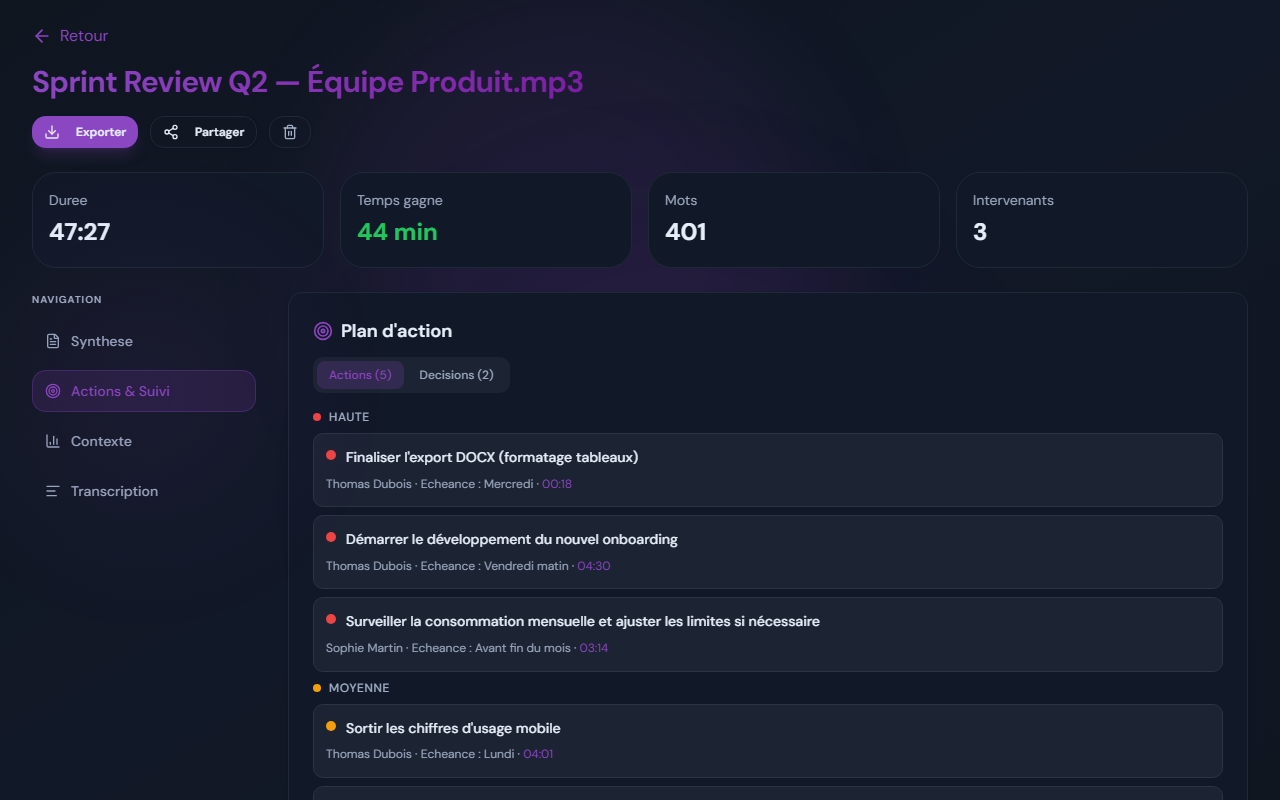
Without a transcript, decisions get lost, writing the recap by hand eats up real time after every call, and anyone who missed the meeting has no easy way to catch up. A searchable text of the conversation fixes all three problems at once.
Automatically transcribing your Teams meetings lets you:
- Generate an automatic meeting recap with decisions and action items
- Find a specific point by searching the text instead of re-watching a recording
- Share the content with people who missed the call in seconds
- Build a knowledge base your team can refer back to
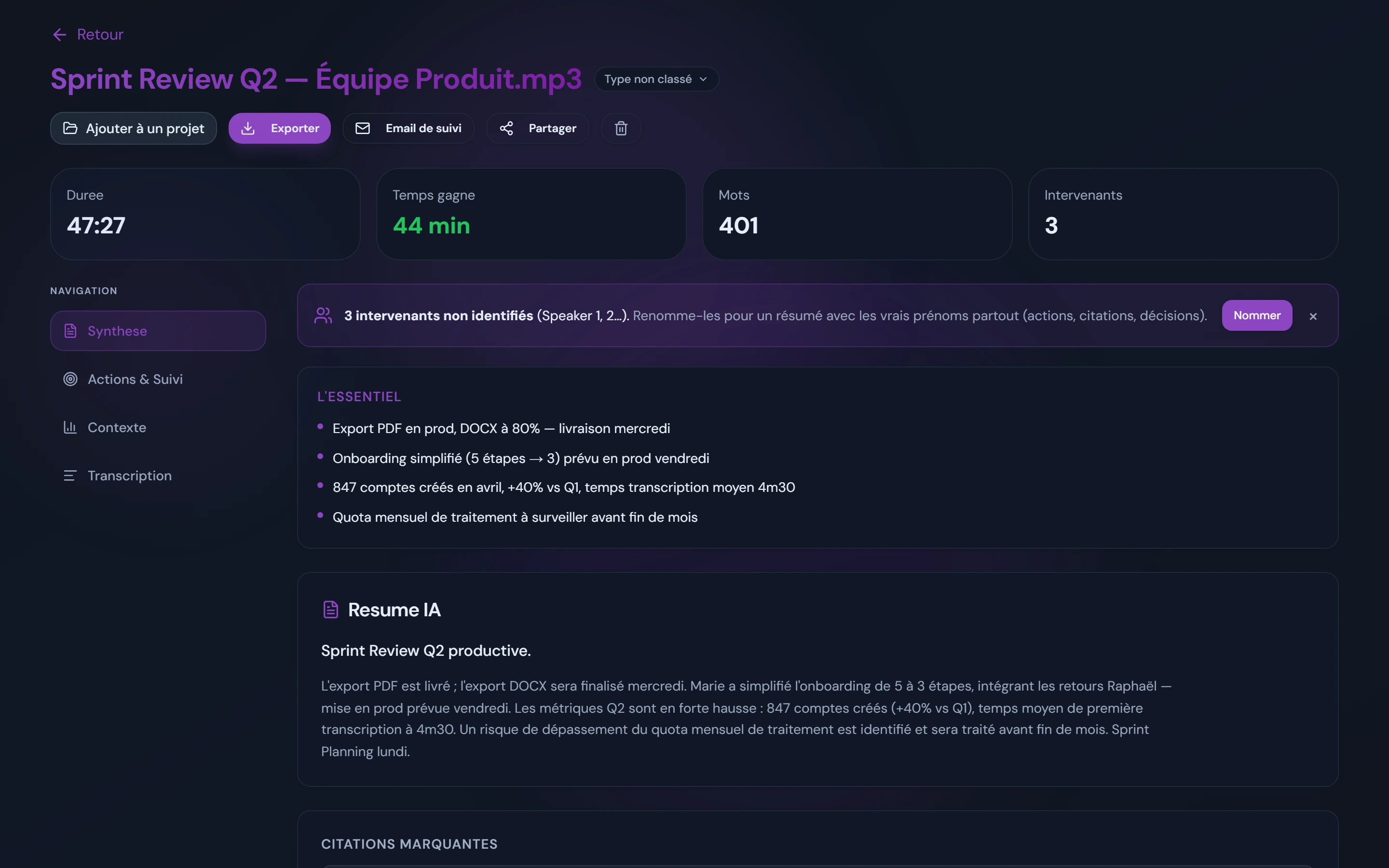
Here is the kind of result you are aiming for: a Teams call turned into a clean summary, key points and an action plan you can use straight away.
What are the three ways to transcribe a Teams meeting?
There are three main ways to transcribe a Microsoft Teams meeting: the built-in native transcription (free, but admin-gated), Microsoft 365 Copilot (a paid add-on), and a dedicated third-party tool such as AudiosTranscribe. Each has clear strengths and trade-offs.
The three methods at a glance:
- Method 1, native Teams transcription: free with eligible Microsoft 365 plans, but needs admin activation and gives raw text only
- Method 2, Microsoft 365 Copilot: paid per-user add-on, adds an AI summary inside Teams
- Method 3, third-party tool (AudiosTranscribe): upload your recording, no bot joins the call, get a transcript plus a structured recap
How to choose
To pick the right method, weigh these criteria:
- Transcript quality: how clean the text is on real meetings with crosstalk, jargon and accents
- Cost: per-user add-on pricing versus a flat account price for the whole team
- Post-transcription features: automatic summary, decision and action extraction, exports
- Data location and GDPR: where recordings and transcripts are stored
- Admin requirements: do you need IT to enable something or grant a licence?
Can Teams transcribe a meeting natively, and how?
Yes, Microsoft Teams can transcribe a meeting on its own. Native live transcription is included with eligible Microsoft 365 Business plans, and it converts speech to text in real time during the call. The catch is that it has to be switched on by an admin first, and it produces a raw transcript with no summary.
How to turn on Teams transcription, step by step
Here is how to enable and use native Teams transcription:
Ask your admin to enable it
Your Microsoft 365 administrator turns on transcription in the Teams admin center, under Meeting policies, by allowing transcription. Until that is enabled, the option will not appear in your meetings.
Start transcription during the meeting
In the meeting, click More actions, then Start transcription. All participants get a notification that the meeting is being transcribed, which also helps you stay on the right side of consent rules.
Get the transcript file afterwards
Once the meeting ends, the transcript is available in the Teams meeting chat and recap, or alongside the recording in OneDrive, and can be downloaded as a .vtt or .docx file.
Watch out: native transcription has to be enabled by an IT admin. If you do not have the rights and your admin has not turned it on, you cannot use it, even with a valid Microsoft 365 licence. This is the most common blocker inside larger organisations.
Limits of native Teams transcription
Native Teams transcription is convenient, but it has real limits for anyone who needs a usable recap:
- Raw text only: you get the transcript, but no summary and no extraction of decisions or actions
- Crosstalk and jargon: overlapping speakers, technical terms and proper nouns are where errors tend to creep in
- Speaker labels can drift: participants are sometimes mixed up, especially when several people talk at once
- No structured recap: you have to reformat everything by hand to make it shareable
In practice: on a 45 minute sales call, a raw native transcript still needs a careful read-through before it is usable. Acronyms, product names and client names often have to be corrected by hand, which is exactly the manual work an automatic recap removes.
Microsoft Copilot for Teams: what does it add?
Microsoft 365 Copilot is Microsoft's AI add-on that layers an automatic summary and natural-language Q&A on top of the standard Teams transcript. It is a paid per-user licence on top of your existing Microsoft 365 plan, and some intelligent meeting features also depend on Teams Premium.
What Copilot does for Teams meetings
Copilot adds an AI layer to the standard transcription:
- AI meeting summary: key points, decisions and follow-ups pulled out automatically
- Natural-language questions: ask things like "what did Maria say about the budget?"
- Speaker attribution: works best when participants are signed in to their Microsoft accounts
- Native integration: the recap appears directly in the Teams meeting recap
Cost of Copilot for a team
| Item | Detail |
|---|---|
| Pricing model | Paid per-user add-on (check Microsoft for current per-user pricing) |
| Prerequisite | An eligible Microsoft 365 plan; some meeting features also need Teams Premium |
| What you get | Transcript plus AI summary and Q&A inside Teams |
| Data hosting | Microsoft Azure (location depends on tenant configuration) |
| Billing | Per user, so cost scales with the number of seats |
Watch the cost: Copilot is billed per user, so the more people you license, the higher the bill, even if only a few of them run meetings. It tends to suit larger organisations already invested in the Microsoft 365 ecosystem more than small teams that only need meeting recaps. Always confirm current pricing and prerequisites with Microsoft or your IT team.
Tip: if your company already uses Copilot for Word and Outlook, the Teams meeting features may already be covered by your existing licence. Check with IT before paying for anything extra.
How to transcribe Teams with a third-party tool
A dedicated transcription tool such as AudiosTranscribe lets you transcribe your Teams meetings without depending on the Microsoft ecosystem. The approach is simple: record the meeting audio with a desktop app, or use a file you already have, then upload it so an AI engine produces the transcript and recap. No bot joins the call.
Why use a third-party tool instead of Copilot?
Third-party tools have a few concrete advantages:
- No admin rights needed: recording happens on your own machine
- No bot in the call: you upload a recording rather than inviting a meeting bot
- Flat pricing: a single account price for what your team uploads, instead of per-seat billing
- Cross-platform: the same workflow covers Zoom, Google Meet, Discord and phone calls
- GDPR posture: European hosting available by design
AudiosTranscribe: a privacy-first alternative to Copilot
AudiosTranscribe is an AI transcription tool that you can use by simply uploading your meeting recording. It stands out for automatic voice separation (you assign names in one click), a structured summary after every transcription, and European hosting that is GDPR compliant by design.
What AudiosTranscribe gives you for Teams:
- Automatic voice separation, so each contribution is labelled and time-stamped, ready to name in one click
- Automatic recap: summary, decisions and action items extracted by AI
- Upload-based, no bot: nothing joins the call, you just upload the recording
- Flat pricing with a free tier of 120 minutes per month to test it
- Hosted in Europe and GDPR compliant by design
- Cross-platform: Teams, Zoom, Google Meet, Discord and phone calls
Here is what a Teams meeting transcript looks like in AudiosTranscribe, with each voice separated and every contribution time-stamped:

How to transcribe a Teams meeting without recording in Teams
You can transcribe a Teams meeting without recording inside Teams by using a desktop app that captures the audio directly on your computer. This needs no IT approval, no meeting bot, and works with any Microsoft 365 licence.
Step by step with AudiosTranscribe Desktop
Install the desktop app
Go to audiostranscribe.com and download the desktop app for Windows. Installation takes under two minutes.
Set your audio sources
Select your microphone (to capture your voice) and the system audio output (loopback) to capture the other Teams participants. Pick the communication or chat output in your audio settings.
Start recording before the meeting
Start the recording just before you join the Teams meeting. The app runs in the background without interfering with Teams. Remember to tell participants the call is being recorded, since no automatic Teams notification appears when you use an external recorder.
Stop and get your transcript
When the meeting ends, stop the recording. The audio is uploaded for transcription and recap generation (summary, decisions, action items).
Tip: to make speakers easy to name when you review the transcript, ask participants to say their name before speaking the first time (for example "Maria here, I think that..."). It noticeably improves the quality of the final recap.
Full comparison of the three Teams transcription methods
Here is a side-by-side comparison of the three ways to transcribe a Microsoft Teams meeting. Use it to pick the approach that fits your budget, team size and requirements.
| Criterion | Native Teams | Microsoft Copilot | AudiosTranscribe |
|---|---|---|---|
| Pricing | Included with eligible M365 | Paid per-user add-on | Flat account price |
| Free tier | Included in M365 | No | 120 min / month |
| Automatic summary | No (raw transcript) | Yes | Yes (decisions + actions) |
| Admin rights required | Yes (IT must enable) | Licence assignment by admin | None |
| Data hosting | Azure (tenant-dependent) | Azure (tenant-dependent) | Hosted in Europe |
| Speaker labels | Approximate | Automatic (signed-in users) | Voices separated automatically, names in one click |
| Export formats | VTT, DOCX | Inside Teams | TXT, Word, PDF (paid plans) |
| Works outside Teams | No | No (M365 only) | Yes (Zoom, Meet, Discord...) |
| Bot joins the call | No | No | No (upload-based) |
| Best for | Quick free transcript | Large M365 organisations | Teams wanting a privacy-first recap |
How to transcribe an existing Teams recording
If you already have an audio or video file of a Teams meeting, you can transcribe it without using Microsoft's native feature. An upload-based transcription tool lets you bring in the file and get a quality transcript in minutes.
Import an existing Teams recording
Teams recordings are stored on OneDrive or SharePoint as .mp4 files. To transcribe one:
- Download the recording from OneDrive or the Teams meeting chat
- Upload the .mp4 file to AudiosTranscribe (or any transcription tool)
- Get the full transcript plus a recap in a few minutes
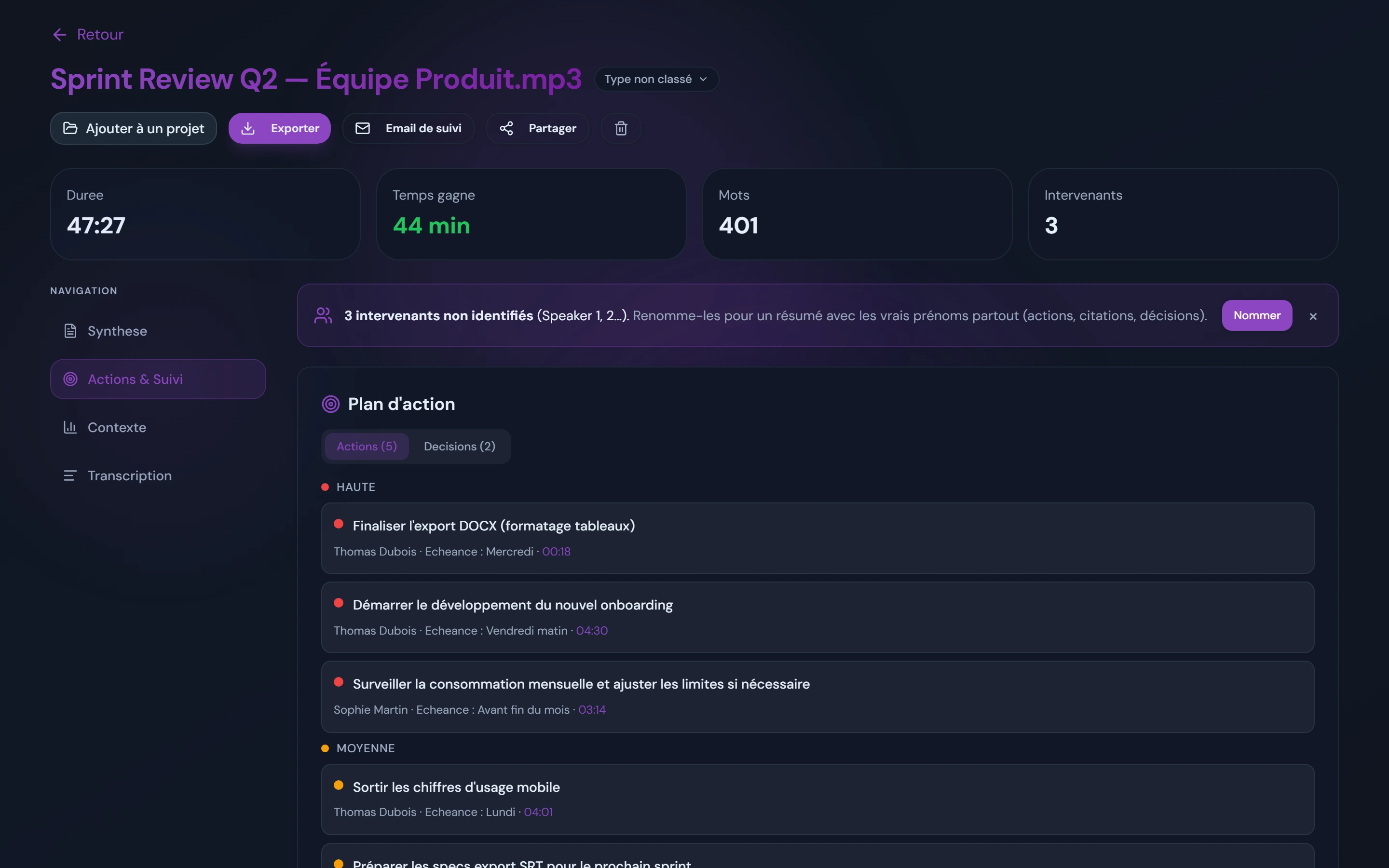
The output includes a structured action plan: decisions, assigned tasks and deadlines, ready to share with the team through tools like Notion or Slack. Beyond Teams .mp4 files, common audio and video formats (MP3, WAV, M4A, MP4, MKV, MOV) are supported, so a recording from any source works the same way.
Get a cleaner transcript
Tip: for the cleanest transcript, use a headset with a microphone rather than your laptop's built-in mic. Built-in mics pick up room noise and background sound, which makes the audio harder to transcribe.
Other good habits:
- Mute your mic when you are not speaking, to cut background noise
- Speak clearly and try not to talk over other participants
- Use a quiet room, since background noise degrades quality
- Enable noise suppression in your Teams settings
Which tool should you choose for which meeting?
The best transcription approach depends on the type of meeting. A 15 minute daily stand-up does not have the same needs as a two-hour leadership meeting full of strategic decisions to document.
- Team meetings and stand-ups (15 to 30 min): exchanges are simple with little jargon, so the raw native Teams transcript is usually enough.
- Sales and client meetings: recap quality matters, so a tool with speaker labels and a structured summary (like AudiosTranscribe) helps you avoid missing a commitment; export to Word or PDF makes it easy to share.
- Leadership and strategy meetings: you need a full automatic meeting recap with decisions, actions and owners, so an AI summary (Copilot or AudiosTranscribe) is essential.
Teams transcription and GDPR: what you need to know
GDPR compliance is a key factor when choosing a meeting transcription tool. The GDPR sets strict obligations on processing personal data, and that includes audio recordings with identifiable voices.
Where is your transcription data stored?
Where the data lives is a crucial point:
- Native Teams and Copilot: data is stored in Microsoft Azure, with the location depending on your tenant configuration
- AudiosTranscribe: hosted in Europe and GDPR compliant by design
Legal obligations when recording a meeting
Under the GDPR, you should:
- Tell all participants the meeting is being recorded and transcribed
- Have a lawful basis for processing, such as consent or legitimate interest depending on context
- State the purpose: meeting recap, training, internal documentation
- Limit how long recordings and transcripts are kept
Watch out: recording a Teams meeting without informing participants can be unlawful in the UK and EU. Native Teams shows an automatic notification, but if you use a third-party app you need to tell participants verbally before you start recording.
How to get an automatic meeting summary from Teams
An automatic meeting summary goes beyond a plain transcript. It turns the conversation into a usable document with a summary, the decisions made, the action items and who owns them. That is the difference between a wall of text and something your team will actually read.
Raw transcript vs structured recap
| Criterion | Raw transcript | Automatic recap |
|---|---|---|
| Format | Full linear text | Structured document |
| Length | Very long (everything included) | Concise summary |
| Decisions | Buried in the text | Extracted and listed |
| Actions | Not identified | Listed, with owners when they are mentioned |
| Read time | Long | A few minutes |
| Usability | Low | Immediate |
With native Teams you get the raw transcript and have to build that structure by hand. Copilot and AudiosTranscribe generate it for you: an executive summary, the key points by theme, the decisions made, and action items with owners and deadlines when they are mentioned. If you write the recap yourself, our meeting minutes template gives you a ready-made structure to fill in.
Alternatives to Copilot for transcribing Teams
If Copilot is too expensive or does not fit your organisation, several alternatives let you transcribe your Teams meetings. The main options in 2026:
- AudiosTranscribe: upload-based, no bot, automatic voice separation, structured recap, hosted in Europe
- Otter.ai: popular in English, transcript plus AI chat, US-hosted
- Fireflies.ai: a bot that joins the call to record and transcribe
- Fathom and similar: meeting assistants that join calls and summarise them
For a broader comparison of these tools (meeting bot or not, EU data hosting, free plans), see our guide to Otter.ai alternatives.
Bot in the call vs upload-based
Many assistants work by sending a bot to join your meeting, which appears as a participant and records the call. AudiosTranscribe takes the opposite approach: you record locally or use an existing file, then upload it. No bot shows up in the call, which keeps the meeting cleaner and avoids inviting a third-party participant into sensitive conversations.
The same upload-based method works beyond Teams, too: if you also run Google Meet or Zoom calls, one AudiosTranscribe account covers all of them, so you are not paying for a separate tool per platform. See our dedicated guides on how to transcribe a Zoom meeting and on Google Meet transcription.
What does Teams transcription cost in 2026?
The cost of transcribing Teams meetings ranges from nothing (native, with limitations) to a per-user add-on. For a small or mid-size team, value for money is often the deciding factor. Here is how the options compare in 2026.
| Tool | Pricing model | Included volume | Recap |
|---|---|---|---|
| Native Teams | Included with M365 | Unlimited | No |
| Copilot | Paid per-user add-on | Within M365 | Yes |
| AudiosTranscribe | Flat account price | Free tier 120 min/month | Yes |
| Otter.ai | Per-user tiers | Variable | Yes |
| Fireflies | Per-user tiers | Variable | Yes |
Best value for small teams: AudiosTranscribe uses a flat account price with a free tier of 120 minutes per month to test it, rather than per-seat billing. For a team where only a few people record meetings, a flat price usually works out cheaper than a per-user add-on. Confirm current Microsoft pricing with your IT team before comparing.