Why transcribe your Zoom meetings?
Transcribing a Zoom meeting turns the spoken conversation into searchable text, so decisions are captured, absent colleagues can catch up, and nobody has to rewatch an hour-long recording to find one sentence. A good transcript also gives you a structured recap with the key points and action items pulled out.
In practice, a Zoom transcript solves three everyday problems at once:
- Nothing gets lost: decisions and commitments are written down instead of half-remembered
- Faster follow-up: an automatic summary replaces the manual write-up after every call
- Easy catch-up: anyone who missed the meeting reads the recap in minutes
The question is not whether to transcribe, but how. Zoom's own tools changed in 2026, so let us look at the three routes and where each one makes sense.
What are the three ways to transcribe a Zoom meeting?
The three ways to transcribe a Zoom meeting are Zoom's native cloud transcript (paid plans), uploading the recording to an AI transcription tool, and live captions or third-party meeting bots. Native is convenient if you already pay for Zoom, uploading gives the cleanest transcript and recap, and bots are the option to be most careful with.
The three methods at a glance:
- Method 1, Zoom native transcript: automatic transcript for cloud recordings, needs a paid Zoom plan
- Method 2, upload to an AI tool: record then upload the file, get speaker labels and a structured summary, no bot in the call
- Method 3, live captions and bots: real-time captions (now limited) or an assistant bot that joins the meeting
Method 1: Zoom's native audio transcript
Zoom can transcribe a meeting automatically, but only for cloud recordings on a paid plan. You enable cloud recording and the audio transcript setting before the meeting, and Zoom produces a time-stamped transcript in your recordings within about an hour of the call ending.
Plan requirements and how to enable it
Native transcription is tied to Zoom's cloud recording, which starts on paid plans (Pro and above); the Business plan adds more automatic options. Free accounts do not get a saved native transcript.
Turn on cloud recording and audio transcript
In your Zoom account settings, enable cloud recording and switch on the Audio Transcript option. This has to be done before the meeting starts.
Record the meeting to the cloud
As host or co-host, start a cloud recording during the call. Participants see a recording indicator, which also helps with consent.
Collect the transcript afterwards
The transcript is generated automatically and appears next to the recording, usually within an hour, as a WebVTT (.vtt) file with speaker names when participants are signed in.
Captions changed in 2026: as of May 2026 Zoom removed the ability to save or download live captions. Captions are still visible during the call with a short scroll-back window, but the text is gone when the meeting ends. If you rely on Zoom for a saved transcript, you now need a cloud recording on a paid plan, not captions.
The limits of the native transcript are familiar: it is raw text with no structured recap, speaker labels drift with crosstalk, and you need the right plan and settings enabled ahead of time. For a summary you also need Zoom's AI Companion, which is likewise tied to paid plans.
How to transcribe a Zoom meeting on a free account
On a free Zoom plan you cannot get a saved native transcript, but there is a simple workaround: record the meeting locally, then upload the file to a transcription tool with a free tier. As the host of a free meeting you can still record to your computer, which saves an MP4 and M4A file to your local recordings folder. Upload that file and you get the same transcript, speaker labels and summary a paid plan would give you, without paying Zoom for Pro.
The free route in short: local recording (free Zoom) + a transcription tool with a free tier. AudiosTranscribe includes 120 minutes per month at no cost, and you can transcribe an 8-minute clip without even creating an account, so you can test the whole workflow before deciding.
Method 2: upload the recording to an AI tool
The most reliable way to get a clean Zoom transcript with speaker labels and a summary is to record the meeting, then upload the file to a dedicated AI transcription tool. Because the engine processes the whole recording at once rather than in real time, the transcript is usually cleaner than a live one, and no bot ever joins your call.
Why uploading beats a live transcript
- Cleaner text: the AI transcribes the full audio at once, not under real-time pressure
- Speaker labels: voices are separated and each contribution is time-stamped
- Structured recap: summary, decisions and action items, not just raw text
- No bot in the call: you upload a recording instead of inviting a third-party participant
- Works on any plan: it does not depend on your Zoom tier or admin settings
AudiosTranscribe: a privacy-first way to transcribe Zoom
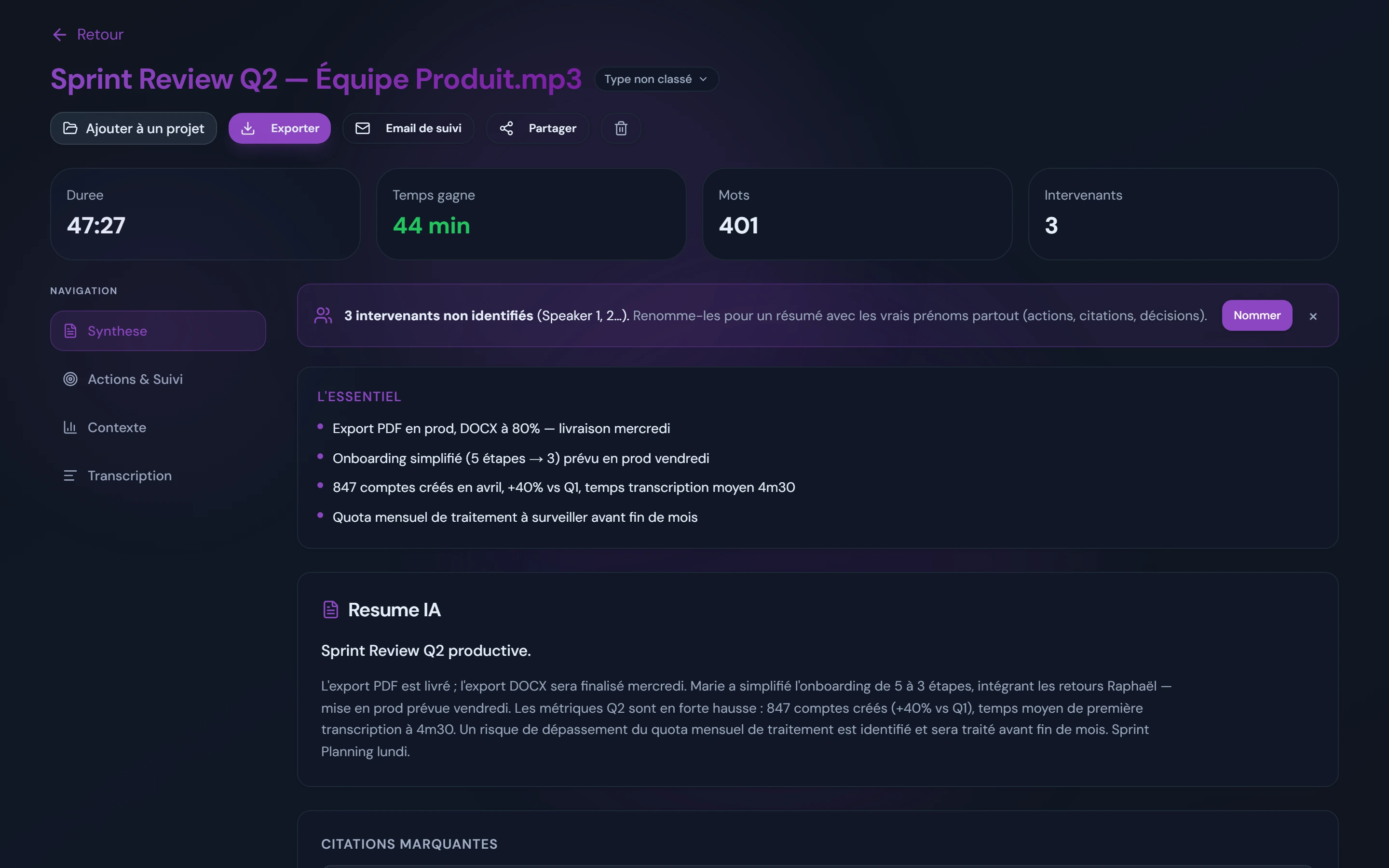
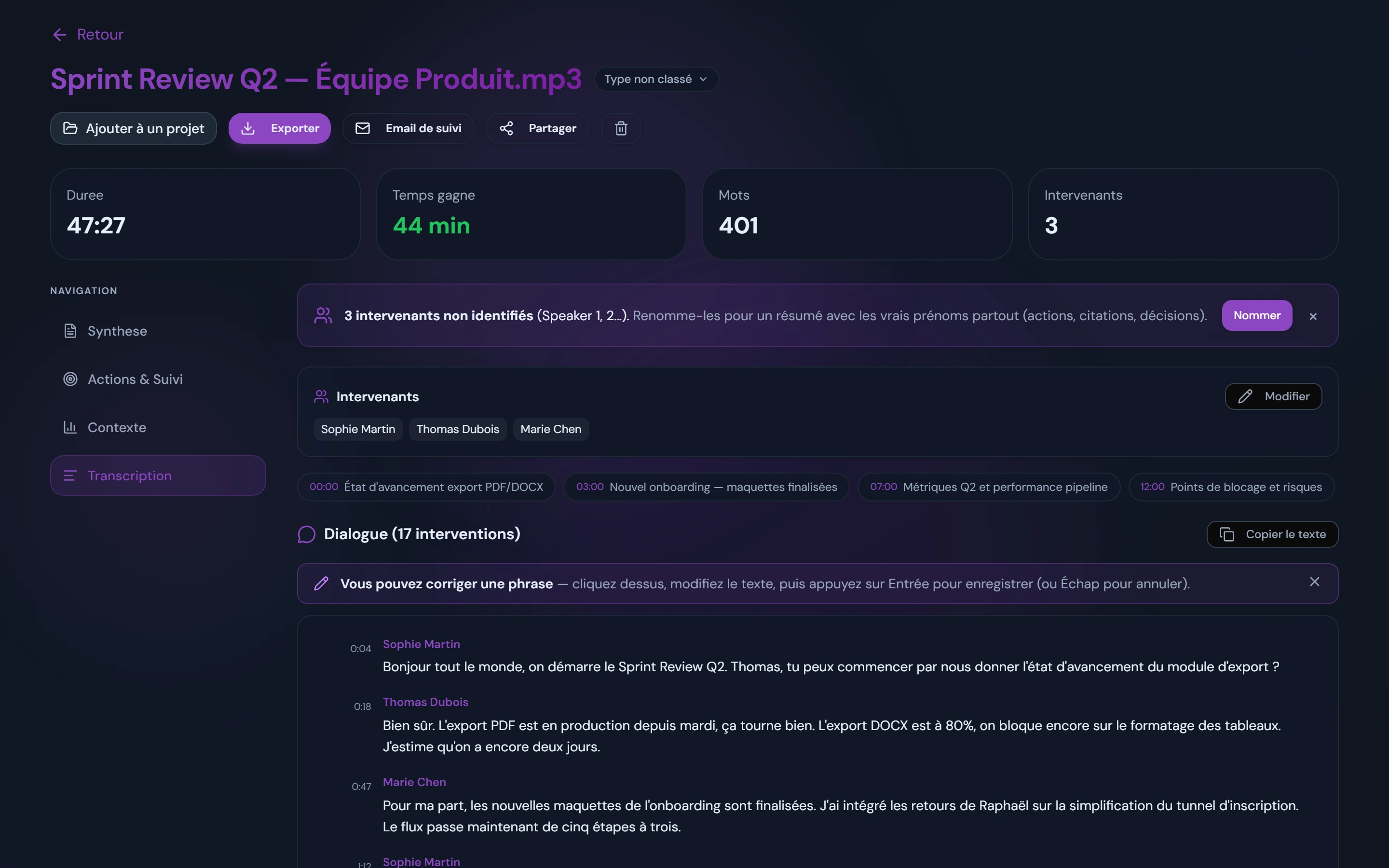
AudiosTranscribe is an AI transcription tool where you simply upload your Zoom recording (or capture the meeting audio with its Windows desktop app) and get a transcript back in minutes. It stands out for automatic voice separation (you assign names in one click), a structured summary after every transcription, and European hosting that is GDPR compliant by design.
What AudiosTranscribe gives you for Zoom:
- Automatic voice separation, so each participant's turn is labelled and time-stamped, ready to name in one click
- Automatic recap: summary, decisions and action items extracted by AI
- Upload-based, no bot: nothing joins the call, you just upload the recording
- Hosted in Europe and GDPR compliant by design
- A free tier of 120 minutes per month to test it, no credit card
This is the same upload-based approach we describe for other platforms in our guide to transcribing a Microsoft Teams meeting: one workflow covers Zoom, Teams, Google Meet and phone calls. If your team also meets on Google Meet, see our guide to Google Meet transcription.
Method 3: live captions and meeting bots
The third route is real-time transcription, either Zoom's own live captions or a third-party assistant bot that joins the meeting. Both give you text during the call, but each has a catch: Zoom captions can no longer be saved, and meeting bots raise consent and etiquette problems.
Live captions
Zoom's live captions still display speech in real time, which is useful for accessibility, but since May 2026 you can no longer save or download them, and they disappear when the meeting ends. They are a viewing aid during the call, not a way to keep a transcript.
Third-party meeting bots
Many AI assistants work by sending a bot that joins your Zoom call as a participant to record and transcribe it. That approach has real downsides:
- Consent and awkwardness: a visible "AI notetaker" participant can make guests uneasy, especially in client or sensitive meetings
- Access to the whole call: a bot in the room hears everything, including side conversations before and after the agenda
- External participant: you are inviting a third-party service directly into the live conversation
Why upload-based is cleaner: AudiosTranscribe takes the opposite approach to bots. You record locally or use an existing file, then upload it, so nothing shows up in the call. The conversation stays between the people who were actually invited.
The three methods compared
Here is how the three ways to transcribe a Zoom meeting stack up on cost, output and privacy. Use it to match a method to your plan and your needs.
| Criterion | Zoom native | Upload to AI tool | Captions / bots |
|---|---|---|---|
| Requirement | Paid Zoom plan (Pro+) | Any plan, just a recording | Captions: any; bots: separate app |
| Saved transcript | Yes (cloud recording) | Yes | Captions: no; bots: yes |
| Structured summary | Only with AI Companion | Yes (decisions + actions) | Bot-dependent |
| Speaker labels | Signed-in users | Yes | Variable |
| Bot in the call | No | No (upload-based) | Yes, for bots |
| Data hosting | Zoom cloud | Europe (AudiosTranscribe) | Provider-dependent |
| Best for | Teams already paying for Zoom | Clean recap, privacy-first | Live accessibility only |
Zoom transcription tools compared: Otter, Rev, Fireflies and AudiosTranscribe
If you would rather use a dedicated tool than Zoom's native transcript, the main options split along one line: do they join your call as a bot, or do you upload a recording? The table below compares four popular tools on the points that matter most for meetings. Free tiers, pricing and language counts change often, so treat this as a starting point and check each provider before you commit.
| Tool | Free tier | How it captures | Data hosting |
|---|---|---|---|
| Zoom (native) | No saved transcript on free plan | Cloud recording, no bot | Zoom cloud (US company) |
| Otter.ai | Yes, with monthly minute limit | Assistant bot joins the call | US-based |
| Rev | Limited free features | Upload files or a live bot; also offers human transcription | US-based |
| Fireflies.ai | Yes, with limits | Assistant bot joins the call | US-based |
| AudiosTranscribe | Yes, 120 min/month (8 min without an account) | Upload a recording, no bot | Europe (GDPR by design) |
The practical difference is the bot. Otter and Fireflies send an assistant that appears as a participant in the meeting, which is convenient but visible to everyone and hosted in the US. Rev supports file uploads as well as a live bot. AudiosTranscribe is upload-only and hosted in Europe, which is the better fit when the conversation is sensitive or subject to GDPR. For a wider look at the options (meeting bot or not, EU hosting, free plans), see our comparison of Otter.ai alternatives.
How to transcribe a Zoom meeting step by step
The most dependable method works on any Zoom plan: record the meeting, then upload the file to an AI transcription tool. Here is the full workflow.
Record the Zoom meeting
Record to the cloud or locally if you are the host, or use a desktop app that captures your microphone and the computer's system audio so you do not depend on your Zoom plan. Tell participants the call is being recorded.
Save the recording file
After the meeting, download the recording as an MP4 or M4A file from your Zoom cloud recordings or your local recordings folder.
Upload it to an AI transcription tool
Upload the file to AudiosTranscribe. It transcribes the whole recording at once, which is usually cleaner than a real-time transcript, and no bot ever touches the call.
Get the transcript, speaker labels and summary
You receive a full transcript with voices separated automatically (you assign names in one click), plus a structured recap with key points, decisions and action items.
Export and share
On a paid plan, export the transcript and recap as TXT, Word, PDF or SRT and share it with people who missed the call or attach it to your project notes. To turn the recap into formal minutes, start from our meeting minutes template for Word.
Tip: to make speakers easy to name when you review, ask people to say their name the first time they speak, and use a headset rather than a laptop's built-in mic to cut background noise. Running an online focus group on Zoom? See how to transcribe a focus group.
Zoom transcription and GDPR for EU teams
Transcribing a Zoom meeting involves personal data, so EU teams should inform participants before recording, have a lawful basis (such as a meeting recap), delete files when they are no longer needed, and check where the data is stored. Choosing a processor hosted in Europe keeps recordings and transcripts within the EU and avoids the extra safeguards that international transfers can require. AudiosTranscribe is hosted in Europe and GDPR compliant by design, so an uploaded Zoom recording stays inside the EU.
Watch out: recording a Zoom meeting without informing participants can be unlawful in the EU and UK. Zoom shows a recording indicator, but if you capture audio with an external app you must tell participants verbally before you start.
Once you have picked a method, the last question is usually cost. AudiosTranscribe starts free with 120 minutes per month; you can see what a full workload costs on the pricing page.