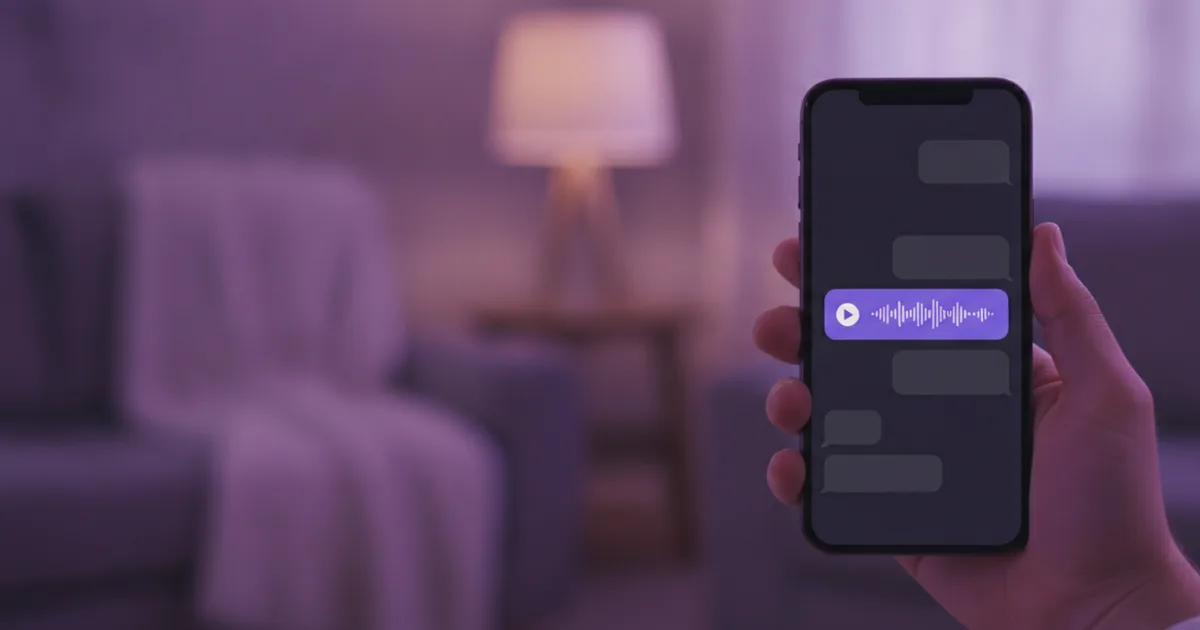
Short answer: in WhatsApp, go to Settings > Chats > Voice Message Transcripts, switch it on and choose a language. Then press and hold a voice note and tap Transcribe. English works on both iPhone (iOS 16 or later, with Siri on) and Android. For voice notes in a language your phone does not support, very long voice notes, or text you want to copy into an email or a document, save the voice note as a file and upload it to our free audio to text tool.
Every WhatsApp detail below comes from WhatsApp's own Help Center and blog, checked on November 16, 2026. WhatsApp updates its apps often, so when in doubt, the linked help page is the reference.
The built-in WhatsApp transcripts in brief
WhatsApp introduced voice message transcripts in November 2024 (WhatsApp blog). The feature shows a text version under a voice note you receive. According to the WhatsApp Help Center:
- It is off by default. You have to switch it on yourself.
- It runs on your phone. Transcripts are generated on your device and voice messages stay end-to-end encrypted. WhatsApp says that no one outside the chat, not even WhatsApp, can listen to them or see the transcripts.
- Only you see the text. The recipient can see transcripts; the sender cannot.
- One language at a time. You pick the language most of your voice notes are in.
- It can be wrong. WhatsApp itself warns that transcripts may be inaccurate.
How to turn on voice note transcripts on iPhone
According to the WhatsApp Help Center for iOS, your iPhone needs iOS 16 or later and Siri must be enabled. If Siri was not on before, you will need to download the selected language when you switch the feature on. Apple explains how to turn Siri on in its iPhone User Guide.
Open WhatsApp settings
Tap Settings or your profile picture, then tap Chats.
Switch on Voice Message Transcripts
Turn on Voice Message Transcripts, tap Choose language and pick the language most of your voice notes are in, then confirm the change.
Transcribe a voice note
Press and hold a voice note, then tap Transcribe. If the text is cut off, tap the voice note's expand icon to see all of it. The transcript may take a moment to appear.
You can change the language later in Settings > Chats > Transcript language. Turning the feature off resets the language setting.
How to turn on voice note transcripts on Android
The steps on Android are almost the same, with one extra download step (WhatsApp Help Center for Android):
- Go to WhatsApp Settings and tap Chats.
- Turn on Voice Message Transcripts.
- Tap Choose language and select the language most of your voice notes are in.
- Tap Set up now, or Wait for Wi-Fi to download the language pack later.
- To read a voice note, press and hold it, then open the menu and tap Transcribe.
The transcript language can be changed at any time in Settings > Chats > Transcript language.
Which languages does WhatsApp transcription support?
This is where iPhone and Android differ most. As listed by WhatsApp on November 16, 2026:
| Phone | Languages supported for voice message transcripts |
|---|---|
| Android | English, Portuguese, Spanish and Russian only |
| iPhone, iOS 16+ | English, Arabic, Chinese, French, German, Italian, Japanese, Korean, Portuguese, Russian, Spanish and Turkish |
| iPhone, iOS 17+ | The iOS 16 list plus Danish, Dutch, Finnish, Hebrew, Malay, Norwegian, Swedish and Thai |
If your voice notes are in English, you are covered on both platforms. The gaps show up as soon as friends, family or clients send voice notes in a language your phone does not offer for transcripts, and on Android, German and French are still in beta and not available to everyone. Because you can only set one transcript language at a time, a chat that mixes English and another language will also give poor results for the messages that are not in your chosen language.
Transcribe option missing? Check these first
When the option does not appear, or the text makes no sense, the cause is usually one of these:
- The feature is not switched on. It is off by default, in Settings > Chats.
- The wrong language is selected. WhatsApp transcribes in the language you chose. A Spanish voice note with English selected will not give usable text.
- The language is not available on your phone, for example French on Android.
- The language pack is still waiting. On Android, the download may be set to wait for Wi-Fi.
- Your iPhone does not meet the requirements: an iOS version older than 16, or Siri switched off.
- You are on a computer. WhatsApp says the feature is not available in its Windows app, and on WhatsApp Web it is only available on certain devices.
- Your app is out of date. WhatsApp recommends keeping it updated so new features reach you.
When the built-in feature is not enough
For a quick voice note on the go, the native transcript is the easiest option, and it never leaves your phone. It shows its limits in a few situations:
- Other languages: the voice note is in a language your phone does not support, or your chats mix several languages.
- Long voice notes: a five-minute monologue full of details is hard to work through as a block of text under a chat bubble.
- Reusing the text: you want to paste the content into an email, a ticket or a report, or keep it on file.
- Lots of voice notes: clients, tradespeople or colleagues send you voice notes you need to keep a written record of.
- Several voices: a forwarded recording has more than one person speaking, and you want the speakers separated.
- You are at your computer and the feature is not available there.
Save a WhatsApp voice note as a file
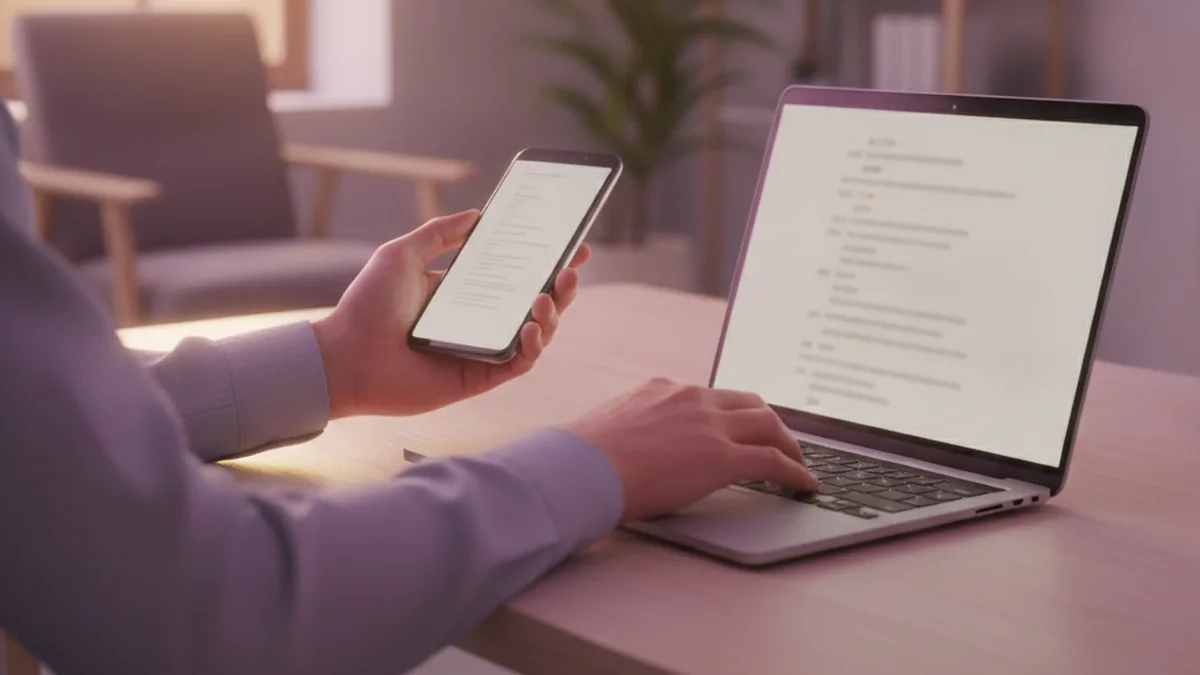
Any external tool needs the voice note as an audio file. Menus vary slightly between WhatsApp versions, but the idea is always the same: share the voice note and save it.
On Android
- Open the chat and press and hold the voice note.
- Tap the menu (three dots) and choose Share.
- Save the file to your phone, or send it to yourself, for example by email, to open it on your computer.
On iPhone
- Press and hold the voice note and tap Forward.
- Tap the share icon at the bottom right.
- Choose Save to Files, or send the file to yourself by email.
WhatsApp voice notes are usually saved as .opus files. That extension matters for the next step.
Turn the file into text, step by step
AudiosTranscribe gives you two free routes: the tool without an account for short voice notes, and the web app with a free account for longer or more frequent ones.
Save the voice note as a file
Share it from WhatsApp as described above and save it, or email it to yourself if you want to work on a computer.
Upload it
In the free tool without an account, rename the file from .opus to .ogg first; files up to 8 minutes and 50 MB are accepted. With a free account, upload the .opus file directly in the web app.
Check the text and reuse it
Read the transcript, correct names and numbers, then copy the text into your notes, an email or a document. When several people speak, voices are separated automatically.
Option A: the free tool, no account
Our audio to text tool accepts MP3, WAV, M4A, FLAC and OGG files, without an account, up to 8 minutes and 50 MB per file and two files per day. It does not accept the .opus extension, so rename the file first, for example from voice-note.opus to voice-note.ogg.
Renaming tip: it is quickest on a computer: email the file to yourself, save it, rename it, upload it. On Android, the Files app can rename it. On iPhone, the Files app does not always show the extension, so Option B is usually easier.
Option B: the web app with a free account
Once you have signed up for free, upload the voice note in the web app. It accepts .opus files directly, so there is nothing to rename. The free plan includes 120 minutes of transcription a month, with no credit card. Your transcripts stay in your history, the language of each file is detected automatically, and you can name each speaker in one click. Exports to TXT, Word (DOCX) and PDF are included in paid plans: see pricing.
The same route works for longer recordings, for example if you need to transcribe an interview.
All options compared
| Criterion | WhatsApp transcripts | Free tool (no account) | Web app (free account) |
|---|---|---|---|
| English voice notes | Yes (iPhone and Android) | Yes | Yes |
| Other languages | Depends on your phone (see list above) | Detected automatically (for example Polish or Hindi) | Detected automatically (for example Polish or Hindi) |
| Mixed languages in one chat | One language setting at a time | Language detected per file | Language detected per file |
| Length | No limit stated by WhatsApp | Up to 8 min, 50 MB, 2 files a day | 120 min a month |
| .opus file | Not needed | Rename to .ogg | Accepted directly |
| Several voices | Not separated | Separated automatically | Separated, named in one click |
| On a computer | Not in the Windows app; Web on certain devices only | Yes, in the browser | Yes, in the browser |
| Where it is processed | On your phone | Hosted in the EU | Hosted in the EU |
Voice note in another language, or too long to read in the chat? Save it as a file and get the text in your browser. 120 minutes a month free, no credit card.
Privacy: what to check before you upload a voice note
On privacy, the built-in feature has a clear advantage: the transcript is created on your phone and the voice note never leaves the chat. As soon as you pass a voice note to another service, different rules apply.
- It is not your voice. A voice note contains the sender's voice and often personal details. At work, check your organisation's policy before sending messages to an outside service.
- Read the provider's privacy terms. Look for where audio is processed, how long it is kept, and whether it is used to train AI models. This applies to websites and to transcriber apps from the app stores alike.
- Keep only what you need. Once you have the text, you rarely need the audio file in your downloads folder.
AudiosTranscribe is hosted in the EU and GDPR-compliant. Audio is deleted after transcription and never kept for more than 7 days, and it is never used to train AI models.
For better results: short pauses between ideas, little background noise and the phone close to the mouth help any transcription method. If you send voice notes that will be read as text, say names, numbers and dates clearly.
Sources
WhatsApp information checked on November 16, 2026.
- WhatsApp Help Center: How to turn voice message transcripts on or off (Android)
- WhatsApp Help Center: How to turn voice message transcripts on or off (iOS)
- WhatsApp Help Center: How to turn voice message transcripts on or off (Web)
- WhatsApp blog: Introducing Voice Message Transcripts (November 21, 2024)
- Apple iPhone User Guide: Turn on and activate Siri